

Introduction
In this post, we explore another exciting new feature: copy, cut, and paste.
As workflows grow in complexity, you often need to reuse parts of an existing pipeline. Rather than rebuilding blocks from scratch, you can now select a group of blocks, copy or cut them, and paste them back into the canvas, complete with their internal connections and stack groupings.
To get started, install the latest development versions:
pak::pak("cynkra/g6R")
pak::pak("BristolMyersSquibb/blockr.dag")
How it works
Keyboard shortcuts and context menu
Copy, cut, and paste work through familiar keyboard shortcuts:
- Ctrl+C (or Cmd+C on macOS): copy the selected blocks and stacks.
- Ctrl+X (or Cmd+X): cut the selected elements (copy then remove).
- Ctrl+V (or Cmd+V): paste from the clipboard.
A right-click context menu also provides a Copy, Cut and Paste option as an alternative. These shortcuts are automatically disabled when focus is inside a form input (text fields, dropdowns, etc.) so they don’t interfere with normal text editing.
What gets copied?
When you select one or more blocks (nodes) or stacks (combos) and press copy:
- All explicitly selected blocks are collected, along with any blocks that belong to selected stacks.
- Only internal connections are kept, that is links where both the source and target are part of the selection.
- Stacks are inferred automatically: if all blocks of a stack are in the selection, the stack is included.
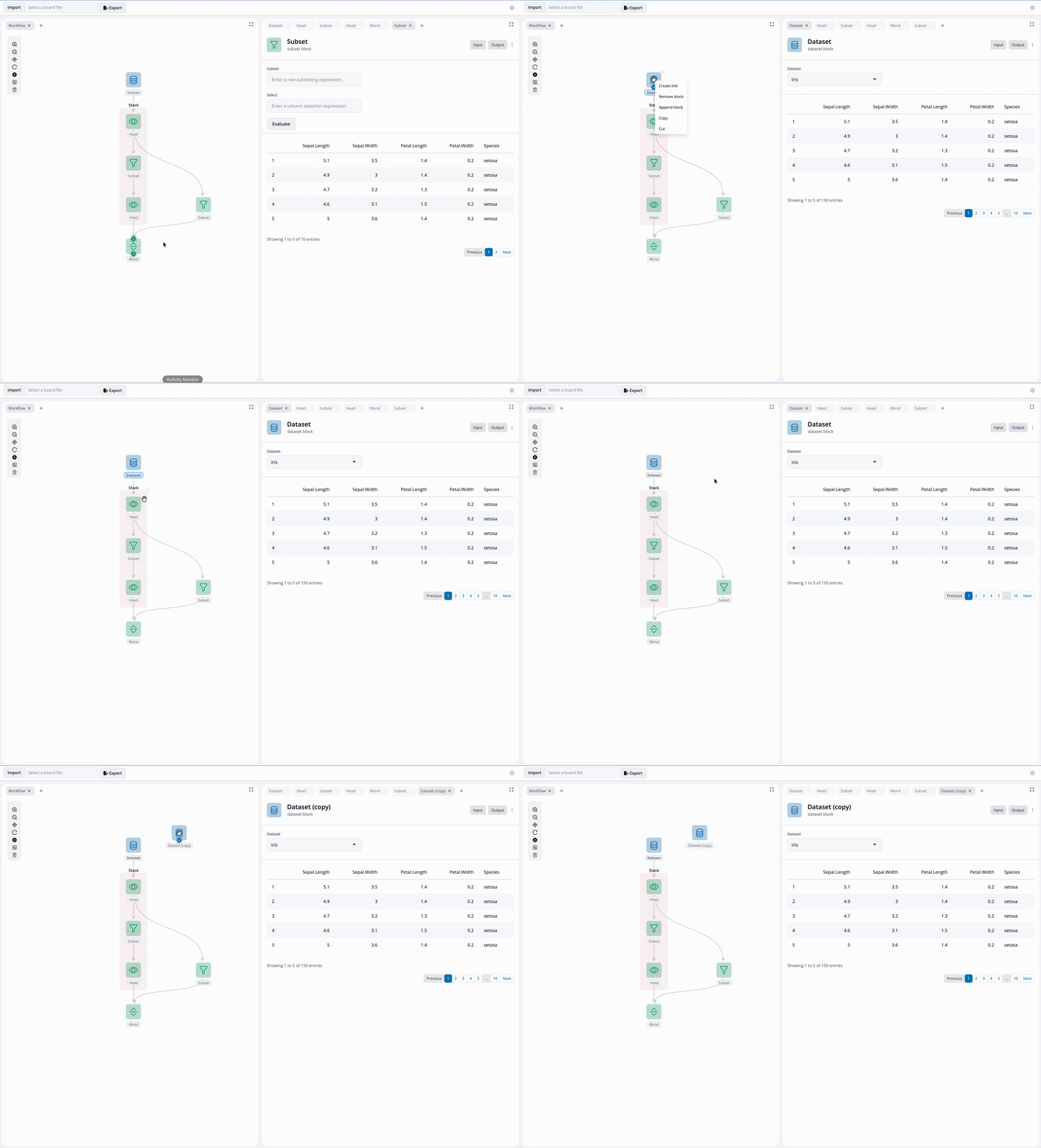
The following demo shows a single block being copied and pasted. The duplicated block appears on the canvas with a fresh ID, retains the same configuration as the original, and is inserted at the position of the last mouse click.
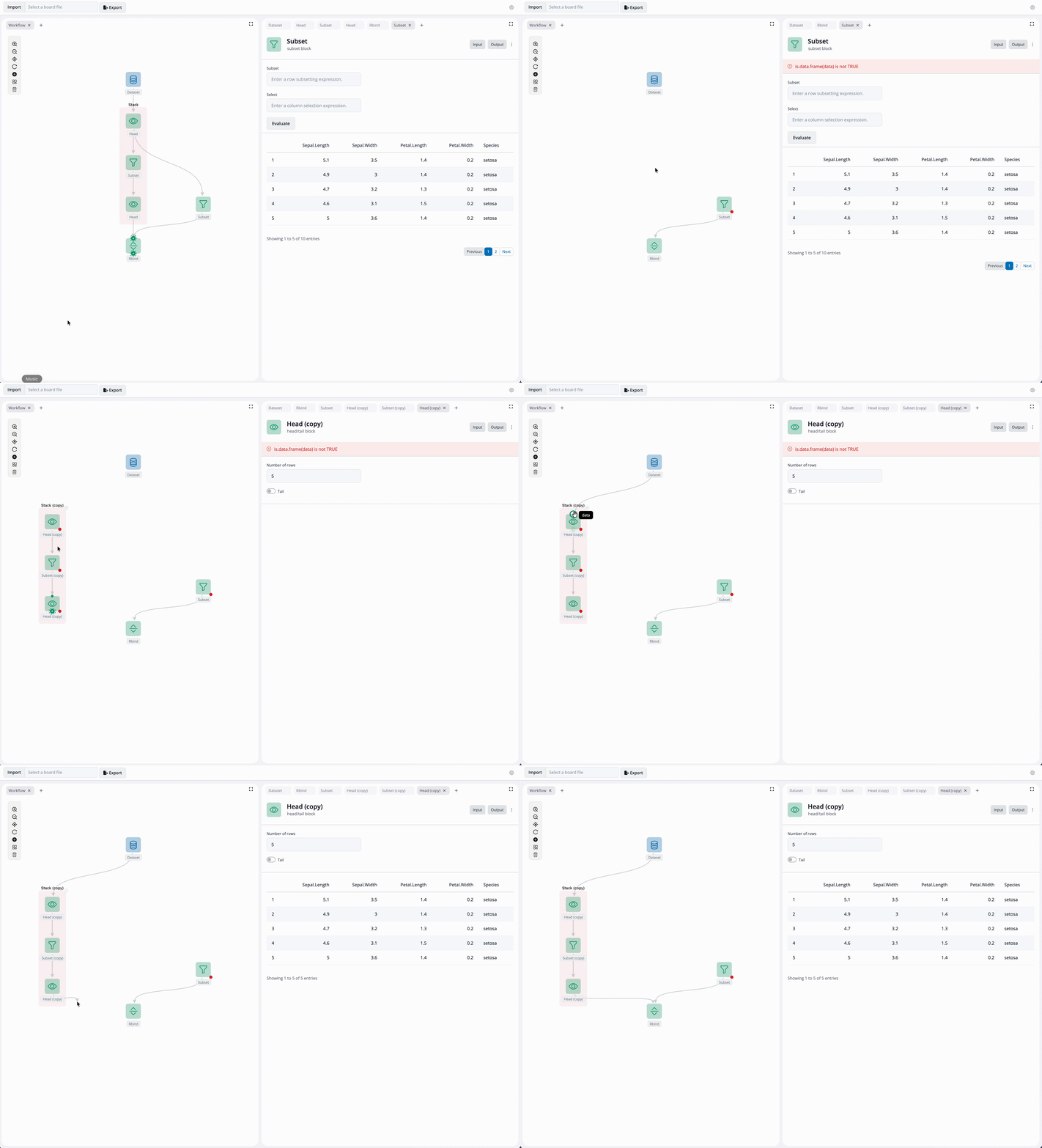
Cut works similarly: the block is removed from the canvas and placed on the clipboard, then pasted at the last clicked position. This is useful for reorganizing workflows without losing block settings. If a connection is lost due to cutting, the block shows a red dot indicator, which can be fixed by reconnecting a compatible parent block.
Copy and paste also works with multiple blocks at once. Hold Shift while clicking to multi-select, or drag-select a region of the canvas while holding Ctrl. Internal connections between the selected blocks are preserved in the pasted copy, so you get an exact duplicate of that sub-graph.
The same applies to stacks: selecting a stack automatically includes all its member blocks. The pasted stack gets a “(copy)” suffix in its label, inherits the same color, and all internal links are duplicated. Cutting a stack removes it entirely and pasting inserts fresh IDs, ready to be reconnected to the rest of the workflow.
Serialization and live state
When blocks are copied, their current reactive state is captured, not just their default configuration. This means that if you’ve changed a filter condition or selected specific columns, the pasted copy reflects those live values.
The serialization uses S3 methods (blockr_ser.sub_board() and
blockr_deser.sub_board()) that follow the same conventions as the rest
of blockr.core. The serialized data is stored as JSON in the system
clipboard, so it persists across paste operations. This is neat as you
can copy and paste between to different blockr applications if needed.
If you try to copy a workflow containing blocks that aren’t available in
the target application, a warning is shown as the operation is not
possible.
ID remapping
Pasted elements receive fresh IDs to avoid conflicts with the originals. They are suffixed with “(copy)” for easy identification.
Known limitations
A few edge cases remain:
- Zoom after paste: using Ctrl+V to paste can interfere with canvas zoom after two or more operations. The context menu paste works normally as a workaround.
- Multi-select drag: you may need to click the canvas panel first before drag-selecting works.
Conclusion
Copy and paste brings a practical improvement to blockr.dag workflows, making it a breeze to duplicate and rearrange blocks and stacks. Instead of rebuilding repeated patterns block by block, you can now duplicate entire sub-graphs with their connections and state intact. As in the previous block post, this feature was developed by supervising an AI coding agent (Claude) through a structured workflow combining thorough specifications and context (motivations, requirements, design, implementation details) with comprehensive human review, ensuring the result integrates cleanly with the existing codebase.
Next steps
If you have feedback, reach out via the contact page on this site. You can also report issues or feature requests on the blockr.dag or g6R repositories.